Documentation
Everything you need to install, configure, and contribute to Electrolite.
Installation
Electrolite is a lightweight, zero-bloat battery charge limit manager for ASUS laptops. It interacts directly with ASUS driver and firmware layers, so there are a few details to ensure it works correctly on your machine.
Download the binary
Grab the latest compiled executable and extract it to a folder of your choice.
Extract the executable to a permanent location, for example:
C:\Program Files\Electrolite\or
C:\Tools\Electrolite\First run
Run as Administrator
Double-click Electrolite_lite.exe. The application manifest is pre-configured to automatically request UAC elevation, meaning you'll see the standard Windows permission prompt.
Verify it's running
Once started, Electrolite runs headless with no window and no taskbar icon. Look for the Battery Silhouette / Teal Lightning Bolt icon in your system tray:
- Left-click the tray icon to toggle the flyout dashboard.
- Right-click the tray icon to open the context menu.
Run at Windows startup
Since Electrolite requires administrator permissions, the recommended approach is Windows Task Scheduler since it bypasses the UAC prompt on boot.
Task Scheduler setup
- Press Win + R, type
taskschd.mscand hit Enter to open Task Scheduler. - Click Create Basic Task… in the Actions panel.
- Name it
Electroliteand click Next. - Set the trigger to When I log on and click Next.
- Set the action to Start a program and click Next.
- Browse to where you saved
Electrolite.exeand select it. - Click Finish.
- Locate
Electrolitein the Task Scheduler Library, right-click it, and select Properties. - In the General tab, check Run with highest privileges.
- In the Settings tab, make sure Allow task to be run on demand is checked and Stop the task if it runs longer than is unchecked.
Modes
Electrolite has two operating modes to fit your daily usage pattern.
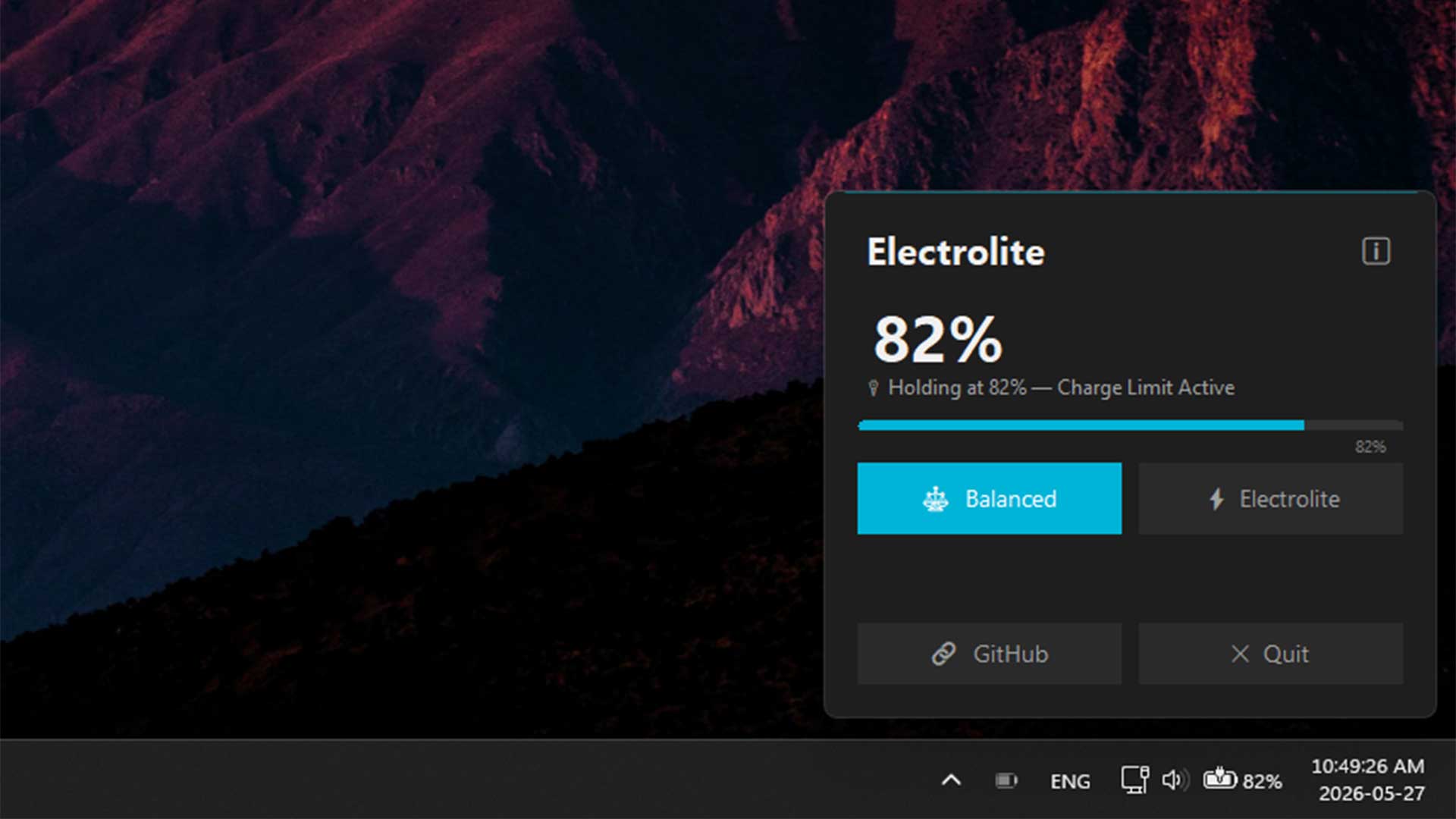
Balanced Mode: 80% limit
Keeps the battery healthy by capping the charge at 80%. Best when your laptop is plugged in at your desk for extended periods. Prevents degradation caused by holding a high charge at constant high voltage.
The tray shows a gray battery icon and the dashboard displays "Holding at 80% - Charge Limit Active".
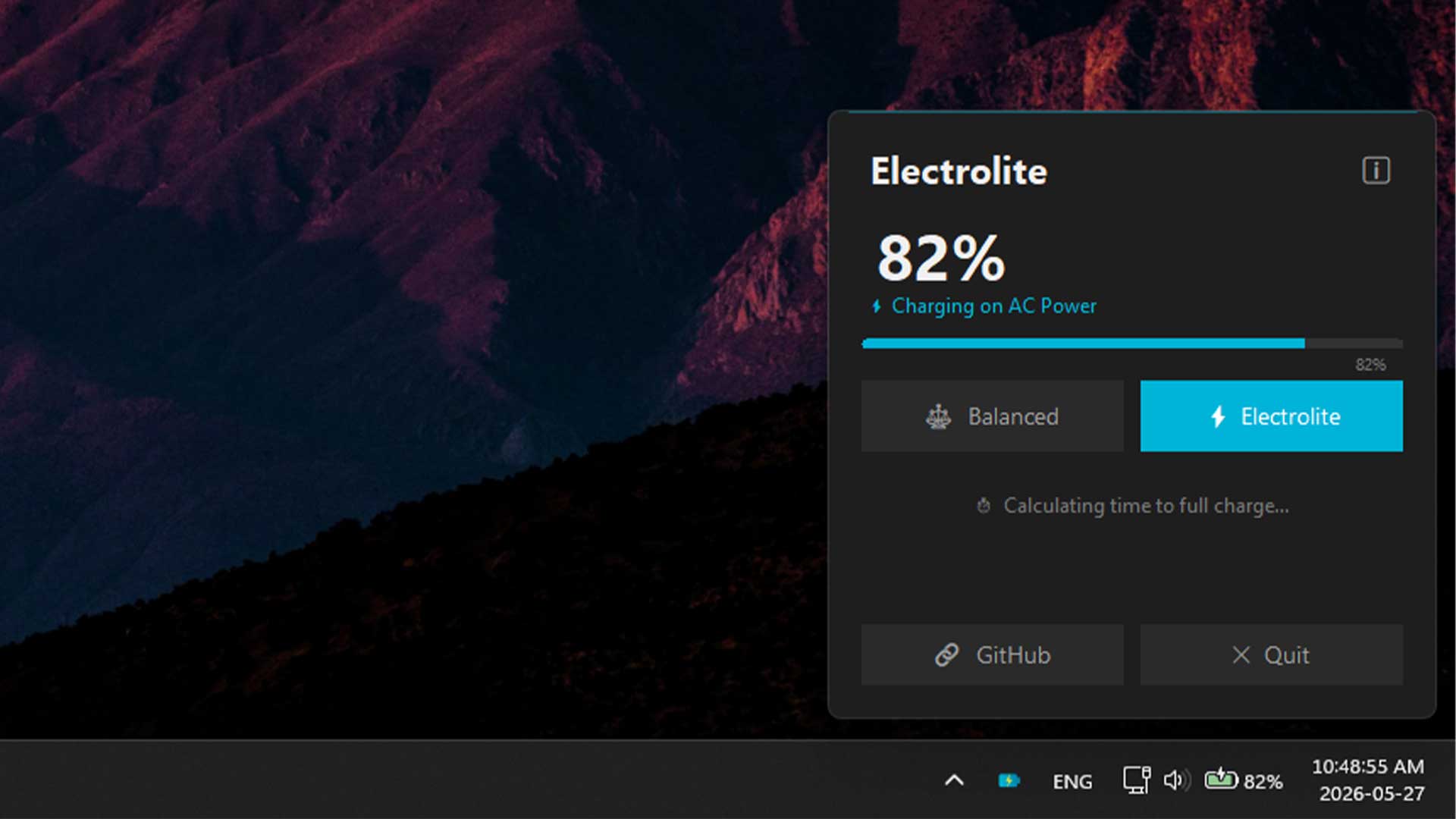
Electrolite Mode: 100% charge
Removes all charging limits, allowing the battery to charge to full capacity. Perfect for topping up right before you travel or leave home.
The tray shows a teal lightning bolt icon and the dashboard displays estimated time to full capacity.
Global hotkey
Press Ctrl + Shift + B to cycle between Balanced and Electrolite modes instantly, from any application. No need to find the tray icon.
Limit not holding
If you set Balanced (80%) but your laptop charges all the way to 100%, another ASUS service is likely overwriting the charge limit in the background.
MyASUS App
Open the MyASUS app, navigate to Customization → Battery Health Charging, and either disable it or set it to match your Electrolite setting.
ASUS System Control Interface / Armoury Crate
Other ASUS background processes can periodically poll the BIOS and reset the limits. If you have third-party ASUS power management tools or official battery limits enabled, make sure they are disabled or not running at the same time.
Hotkey not working
The default hotkey is Ctrl + Shift + B. If it doesn't toggle the mode:
- Another application (such as a browser or development environment) may have already registered that key combination globally.
- As a workaround, right-click the system tray icon to change modes.
How it works
Electrolite bypasses heavy manufacturer software suites and communicates directly with your laptop's hardware through four layers:
Direct ACPI driver calls
Writes the charge threshold (80 or 100) directly to the ASUS ACPI device driver (\\.\ATKACPI) via DeviceIoControl with control code 0x0022240C, method DEVS, and device ID 0x00120057.
WMI fallback
If the direct driver path is not accessible, falls back to calling the WMI method DEVS on AsusAtkWmi_WMNB.
Registry syncing
Syncs the threshold value to the registry (ChargingRate under SOFTWARE\ASUS\ASUS System Control Interface) so that official ASUS services and Windows settings remain aligned.
Instant telemetry
Listens to SystemEvents.PowerModeChanged for real-time power source tracking, combined with queries from SystemInformation.PowerStatus and battery estimates from Win32_Battery.
Building from source
To build the project yourself and produce a single-file standalone executable:
Prerequisites
- .NET 8.0 SDK installed on your machine.
Publish command
Navigate to the root of the repository and run:
dotnet publish app/Electrolite.csproj -c Release -r win-x64 --self-contained false -p:PublishSingleFile=trueParameter breakdown
| Flag | Purpose |
|---|---|
-c Release |
Compiles with release optimizations. |
-r win-x64 |
Targets 64-bit Windows platforms. |
--self-contained false |
Depends on the system's .NET 8 runtime (~1.2 MB binary). Change to true for a standalone ~50 MB executable. |
-p:PublishSingleFile=true |
Packages all assemblies into a single .exe file. |
The compiled executable will be at:
app/bin/Release/net8.0-windows/win-x64/publish/Electrolite.exeHow to contribute
We welcome all kinds of contributions, including fixing bugs, optimizing performance, improving documentation, or adding support for more ASUS models.
- Fork the repository on GitHub.
- Create a branch for your feature or fix.
- Make your changes and test them on your machine.
- Submit a pull request with a clear description of what you changed and why.
Device testing
When submitting a compatibility report, include:
- Your ASUS laptop model (e.g. ROG Strix G15 2022, G513RM)
- Your CPU / GPU info
- Whether Balanced Mode (80% cap) works correctly
- Whether Electrolite Mode (100%) works correctly
- Whether battery telemetry updates correctly in the dashboard
- Whether the global hotkey (Ctrl + Shift + B) cycles modes
Bug reports
Found an issue? Open a bug report on GitHub with the following details:
- A clear description of the bug and what you expected to happen.
- Steps to reproduce the issue.
- Your ASUS laptop model and Windows version.
- Whether you used the Lite or Self-Contained version.
- Screenshots or logs, if applicable.
Pull requests
When submitting a pull request, please include:
Summary of changes
A brief description of what the PR does and why it's needed (bug fix, feature, optimization).
Technical details
- Which components or files were modified.
- The approach taken and any trade-offs.
Verification checklist
- Tested on your ASUS laptop model (specify which).
- Tested on your Windows version (e.g. Windows 11 23H2).
- App builds successfully under .NET 8.
- Checked for memory leaks or high CPU usage.
- Confirmed tray icon, flyout UI, and global hotkeys function correctly.
If your PR changes the UI, please attach before/after screenshots.
Feedback & contact
Your feedback is extremely valuable, especially compatibility reports from different ASUS laptop models.